Post YouTube Shorts to Instagram Reels Automatically with a Free Scheduler
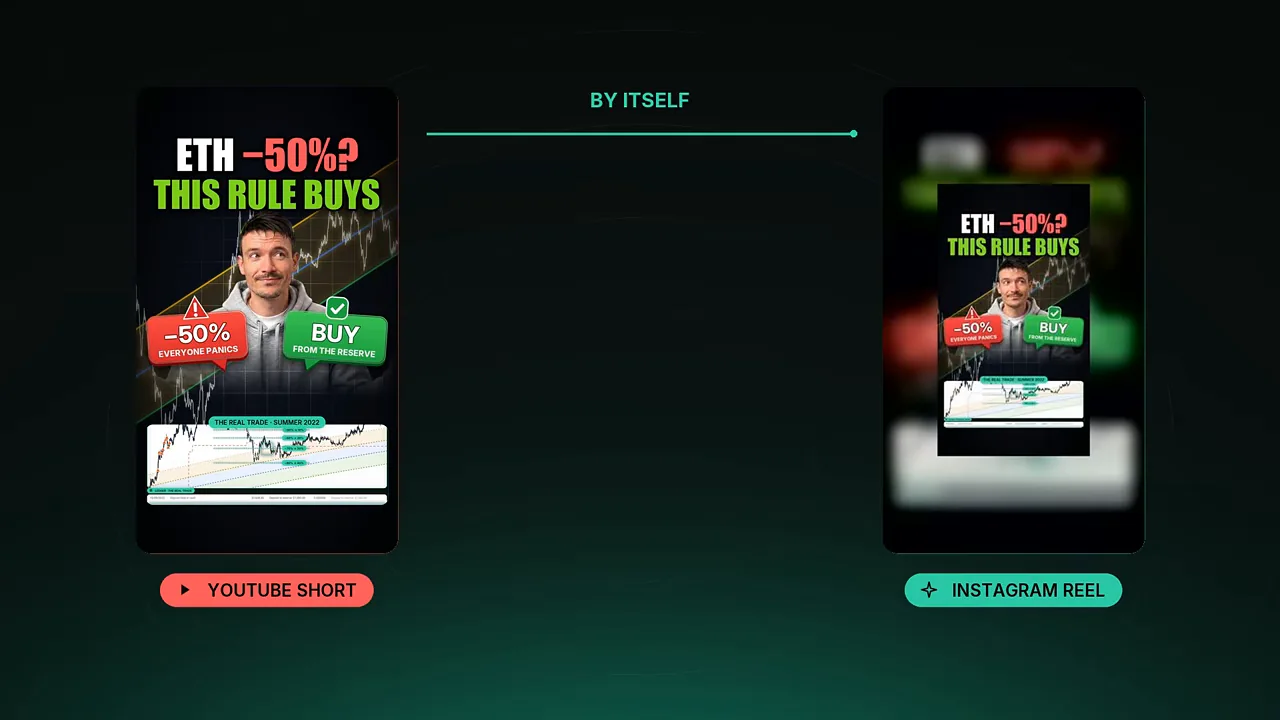
Every Short I post on YouTube now goes to Instagram Reels by itself: same title, description, hashtags, cover and my comment.
Open the free step-by-step setup guide: Free step-by-step setup guide for Reels Studio: every screen for each step.
· 4 views · YouTube video: Post YouTube Shorts to Instagram Reels Automatically (Free Scheduler)
Watch on YouTube · Subscribe to @PROOFOFDATA
Key takeaways
- Pick a Short and a day. The Reel posts at your time with title, hashtags, cover and your comment.
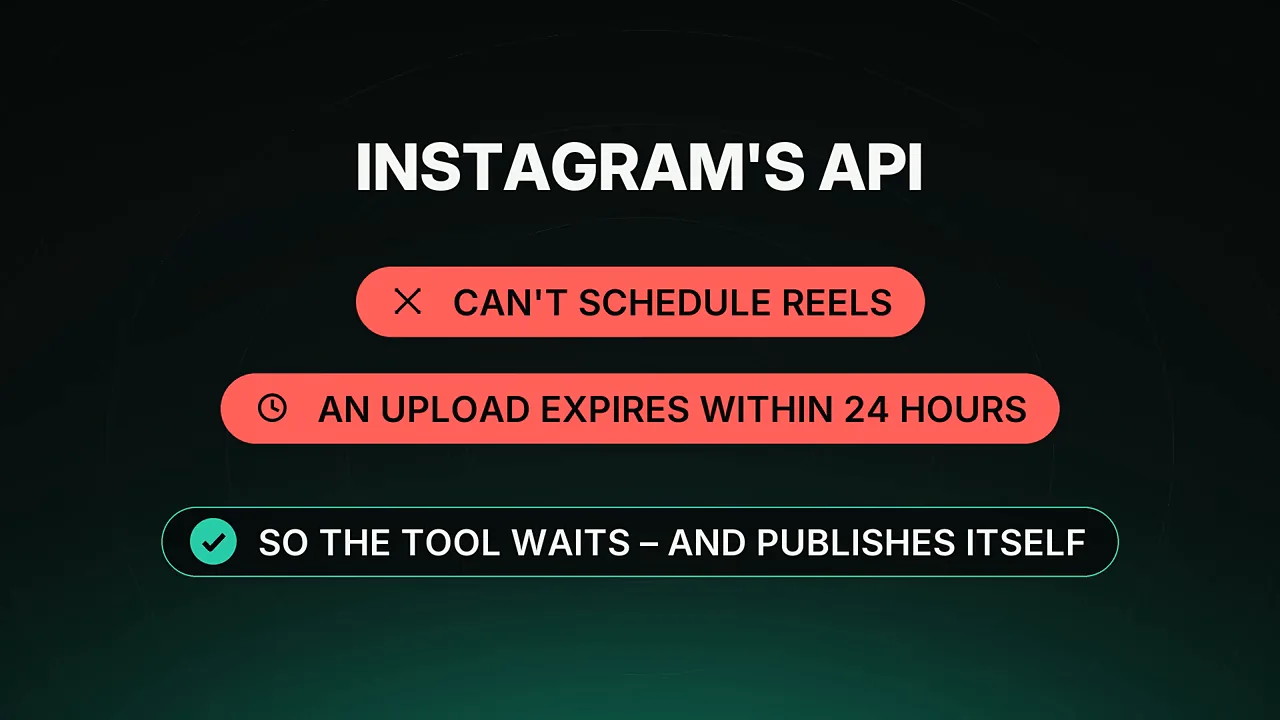
- Instagram's API can't schedule Reels and uploads expire in 24 hours, so the tool publishes on the day itself.
- Three hard rules: only days you picked, at most one Reel a day in the calendar, never the same Short twice.
- When Meta pre-selects a 60-day token, switch it to Never or the automation stops in two months.
- Runs on free GitHub, Google Cloud and Meta plans. You need your computer to schedule, not to post.
- 4 free accounts needed: GitHub, Google Cloud, Instagram pro, Meta app
- ~30 min setup time, most of it in Meta
- 24 h before an uploaded Instagram video expires, so it can't be pre-uploaded
- 60 days Meta's default token life; switch it to Never
Why cross-post Shorts to Instagram Reels
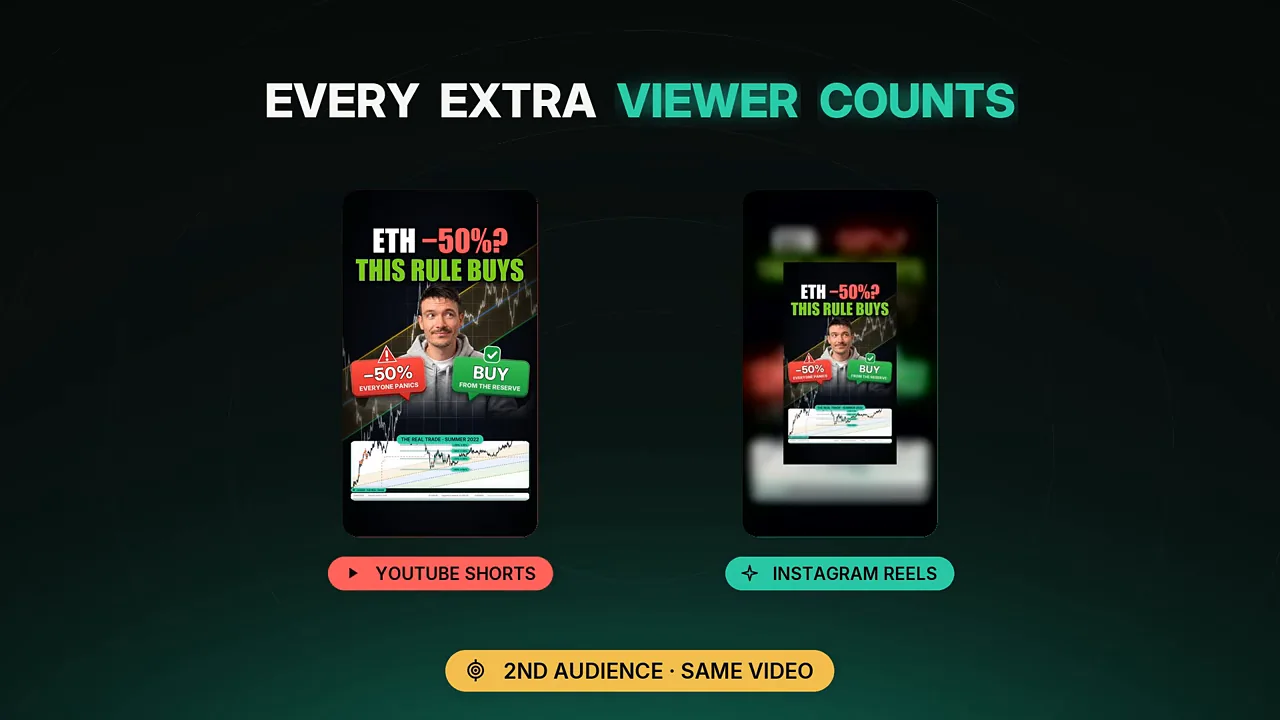
For a new channel, every extra viewer counts, and Instagram Reels is a second audience for the exact same video. Doing it by hand means repeating the same steps for every Short. You download the file, copy the title and description, fix the hashtags (#shorts makes no sense on Instagram), pick a cover, post it, then come back to write the comment.
Tools that automate this usually charge a monthly subscription. The goal was a free tool that works just as well for a brand-new channel as for one that posts every day. So it was built with Claude Code and released as open source.
What Reels Studio does and how it works
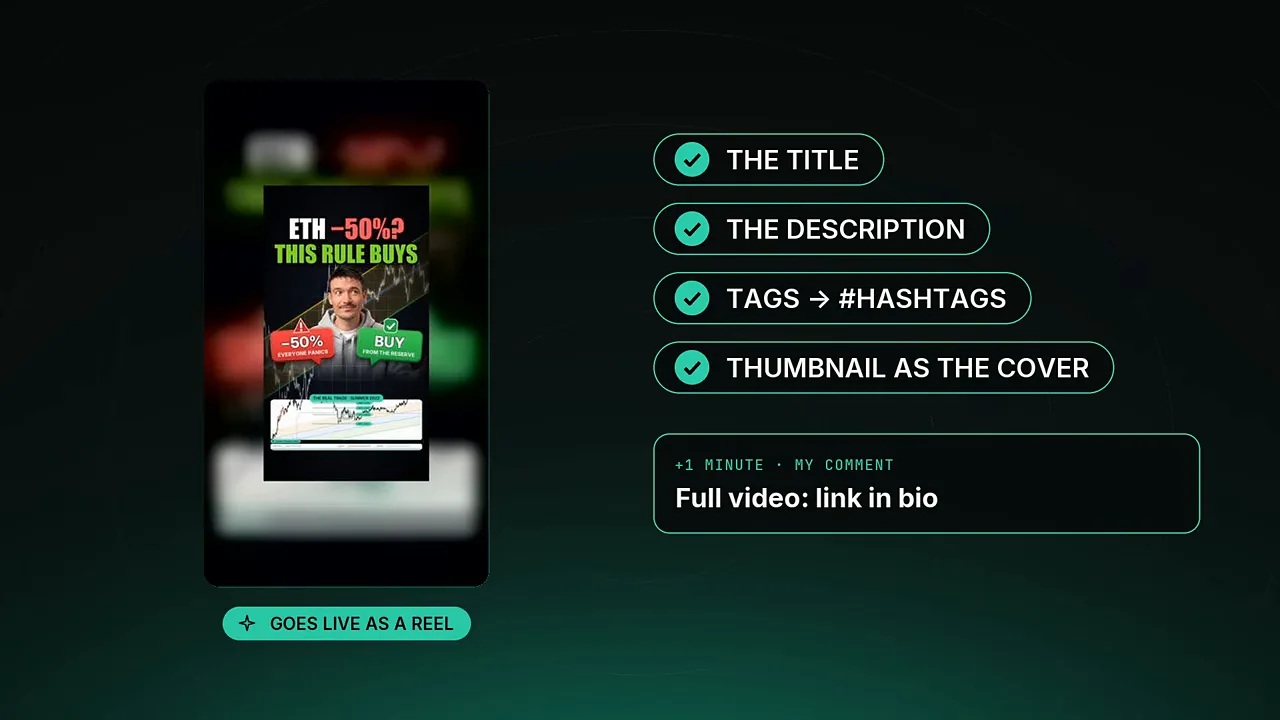
On the right you see all your Shorts, pulled straight from YouTube. You click a Short, click a day in the calendar and hit Schedule. On that day, at your publish time (5 p.m. in the video), the Reel goes live. It carries the title, the description, the tags turned into hashtags and the YouTube thumbnail as the cover.
About a minute later, your own comment from the Short is posted under the Reel. You can also use a template like "Full video: link in bio". There's an optional Instagram AI info label, which this channel uses because its host is an AI twin. If you don't want to plan, Post now publishes within minutes, and a filter shows what's still to do, scheduled or published.
Behind the scenes, a free GitHub server reads the metadata from YouTube when you schedule. It packs that metadata with the video for the chosen day. On the day, a second job uploads the video straight to Instagram and publishes it. This step is needed because Instagram's API can't schedule Reels and an uploaded video expires within 24 hours, so the tool waits and publishes it itself.
Three rules so it never embarrasses you
A tool that posts for you can also embarrass you, so it follows three hard rules. It only posts on the days you picked, never at random. The calendar holds at most one Reel a day, and anything extra takes your own click.
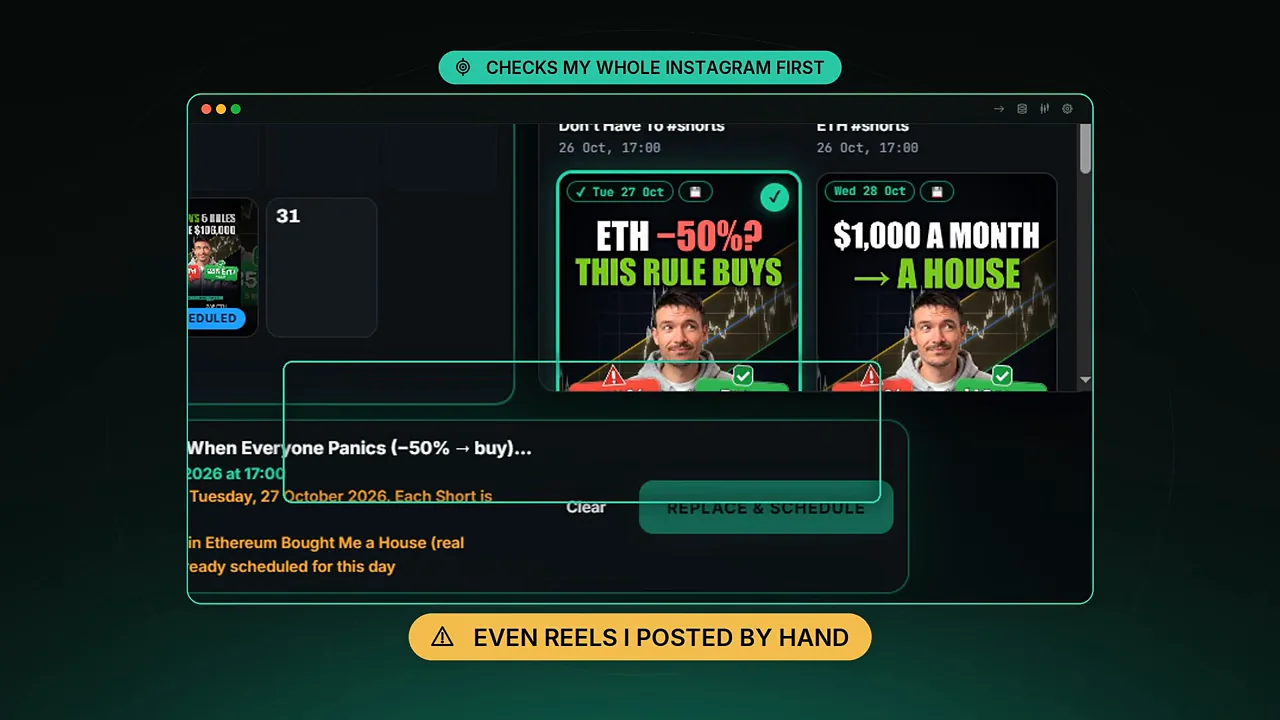
The same Short is never published twice. Every published Short goes on a permanent list. Right before posting, the tool also checks your whole Instagram profile for the same caption, so even a Reel you posted by hand counts.
Problem 1: YouTube blocked downloads of its own videos
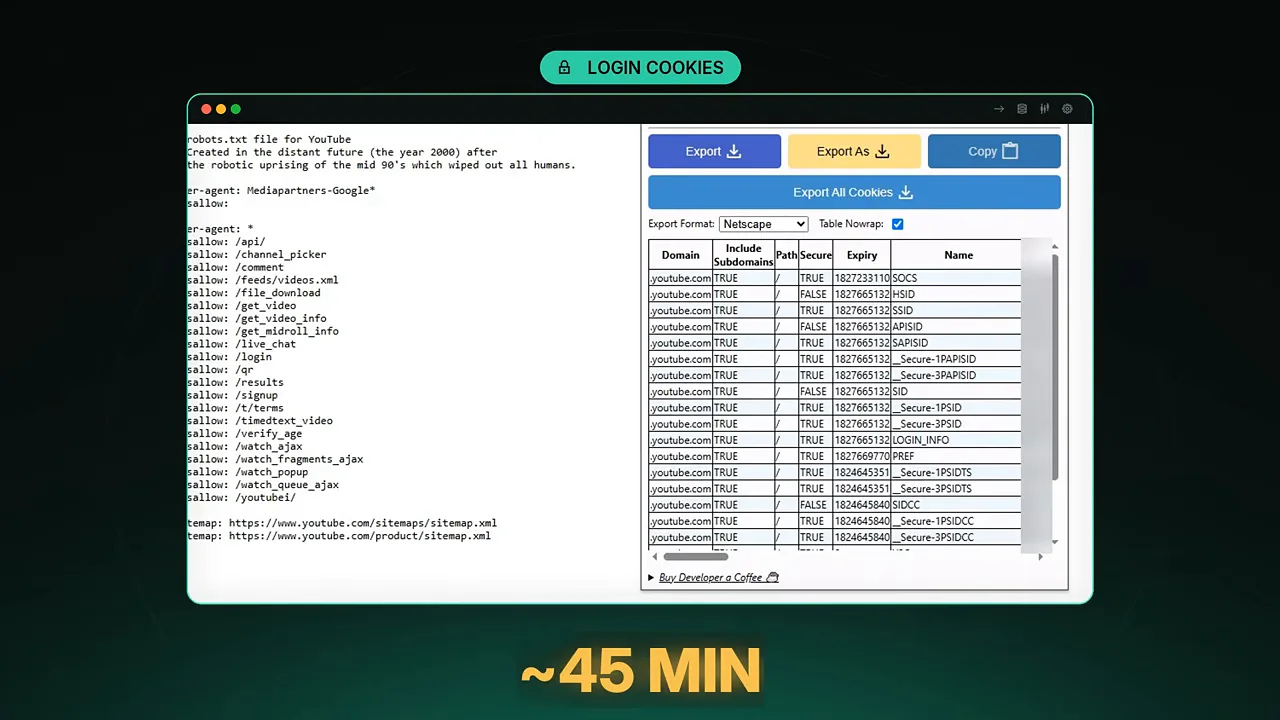
The first test failed with "Sign in to confirm you're not a bot". The title, description and thumbnail came through YouTube's official API and were fine. Only the video file was blocked, because GitHub servers sit in a data center and YouTube doesn't trust data centers.
Login cookies worked for about 45 minutes. The lasting fix is that the desktop app downloads your Shorts on your own computer, where nothing is blocked. It attaches the right file the moment you click a Short.
Problem 2: Instagram crops your cover in the grid
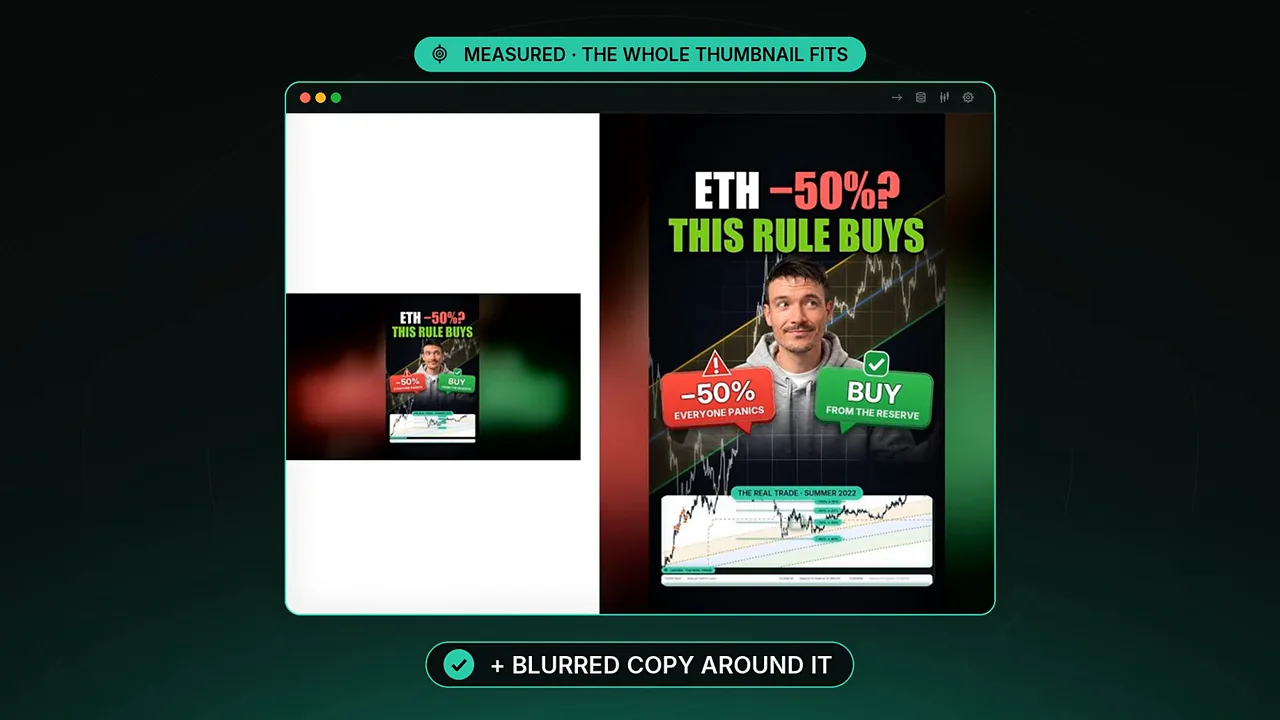
A Reel is tall, but the profile grid only shows the middle of it, so the headline on the thumbnail got cut off. The fix was to measure exactly which area the grid displays. The tool then fits the whole YouTube thumbnail inside that area, with a blurred copy filling the space around it.
The result is that the grid shows the full thumbnail. The Reels tab still shows the full cover, and this happens automatically for every Reel.
Problem 3: the day the tool thought it was 2033
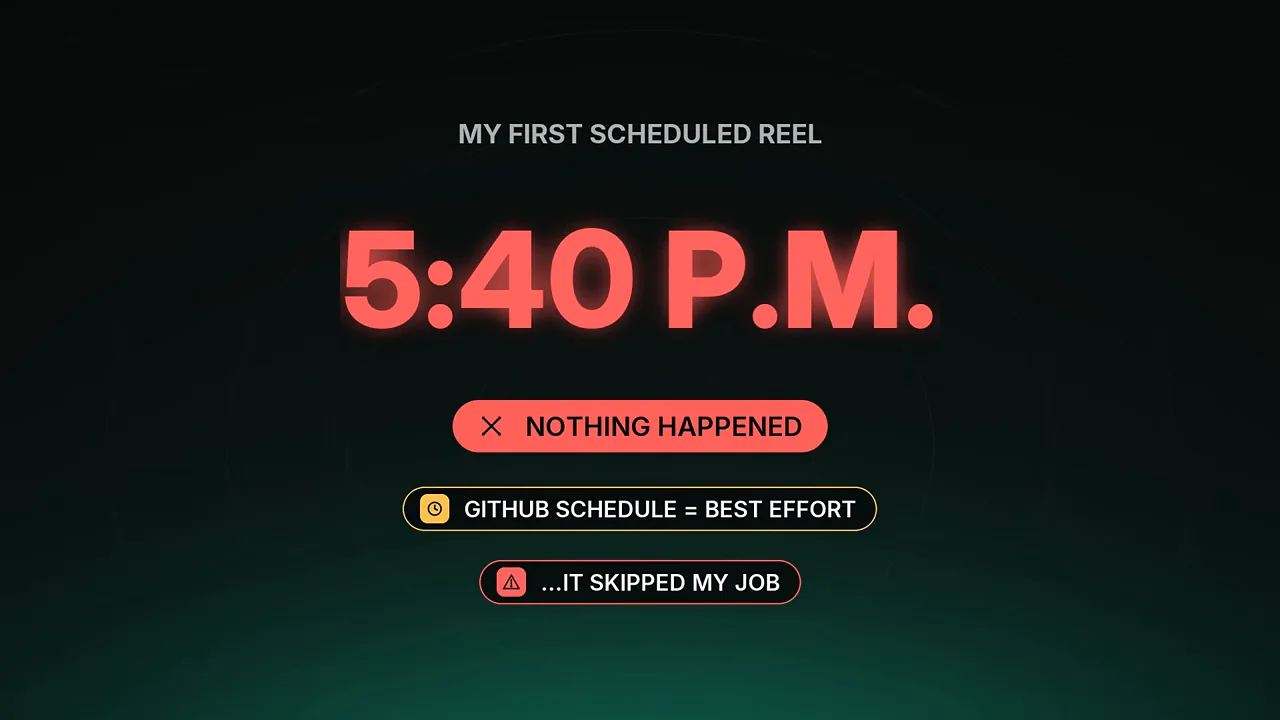
The first scheduled Reel was due at 5 p.m., and nothing happened. GitHub's scheduler is best effort, and that afternoon it simply skipped the job. When the job was started by hand, the log said: "Today is May 24th, 2033, not publishing."
One line of code was adding 40 minutes as 2,400 days. After a one-line fix, the Reel went out at 6:23 p.m. The tool now has a rescue button for this case. It also uses a free outside timer that starts the job on time every day, and since then it has posted on schedule.
Setup: four free accounts and the Meta traps
You need GitHub, Google Cloud (for a YouTube API key restricted to YouTube only), an Instagram professional account linked to a Facebook Page, and a Meta developer app. Plan about half an hour. Start with an empty private GitHub repository and a token, and the app uploads everything for you, with no terminal and no code.
Meta is where people get stuck. Your Instagram must be a professional account (Creator is fine) and linked to a Facebook Page. In the developer app, choose the use case Other and the type Business. In Business Settings, create a system user and give it your Page, your Instagram account and the app.
When you generate the system user's token, Meta pre-selects 60 days, so switch it to Never. Then one query in the Graph API Explorer gives you your Instagram account ID. Paste everything into the app and run the access test until it says all good.
Honest limits
GitHub's scheduler can run late, which is why the outside timer is part of the setup. Your computer has to be on when you schedule, because that's when the video file is downloaded, but not when the Reel is posted.
Only repost videos you own. The tool is not affiliated with YouTube, Instagram or Meta. A free step-by-step guide with a short video and every screen for each step is linked in the video description.
Chapters
 0:00 Shorts to Reels, Automatically
 0:22 Why I Built It
 1:05 The Tool in Action
 1:51 How It Works (Plain English)
 2:23 3 Rules So It Never Embarrasses You
 2:48 Problem 1: YouTube Blocked My Own Videos
 3:19 Problem 2: Instagram Cuts Your Cover
 3:41 Problem 3: The Year 2033 Bug
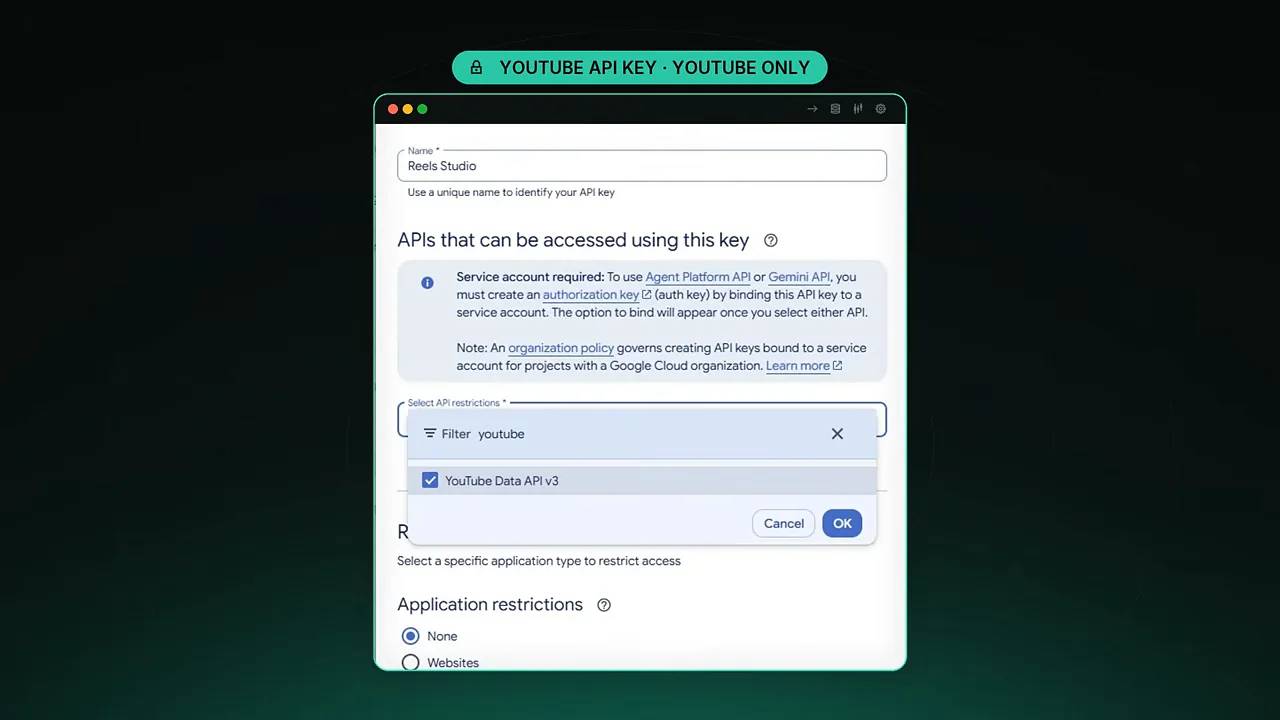 4:18 Setup: 4 Free Accounts
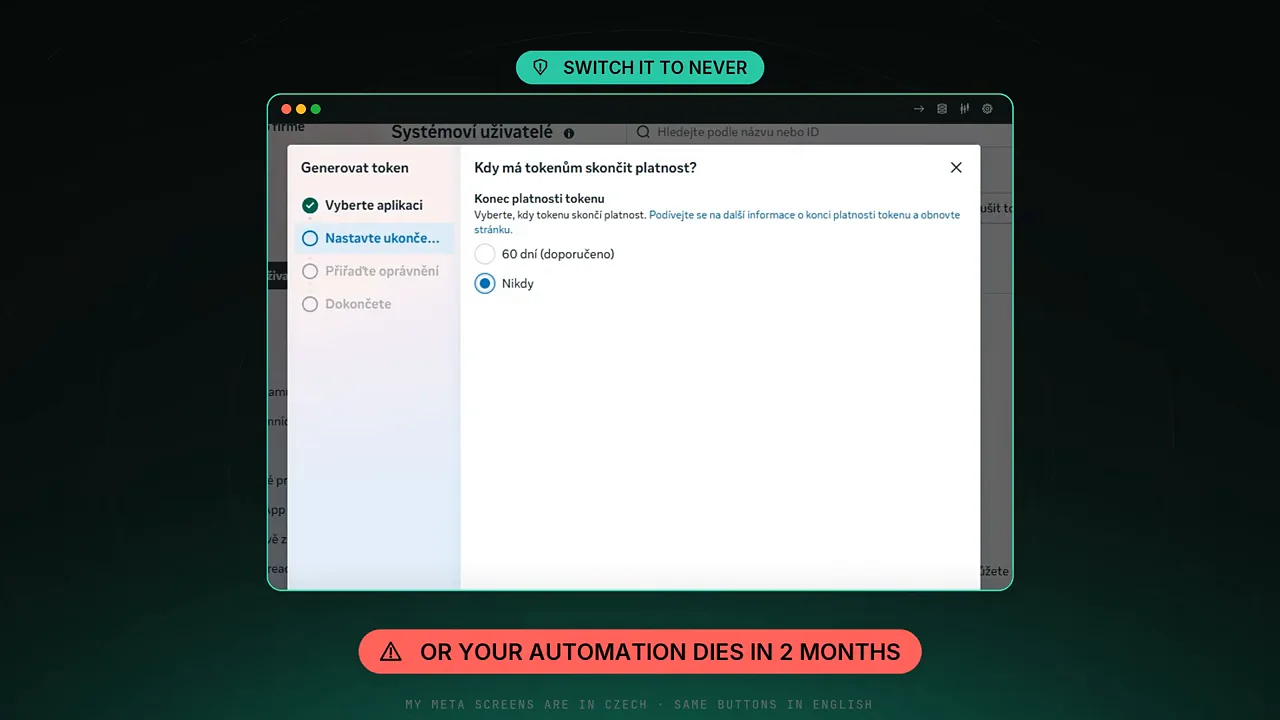 4:43 The Meta Traps
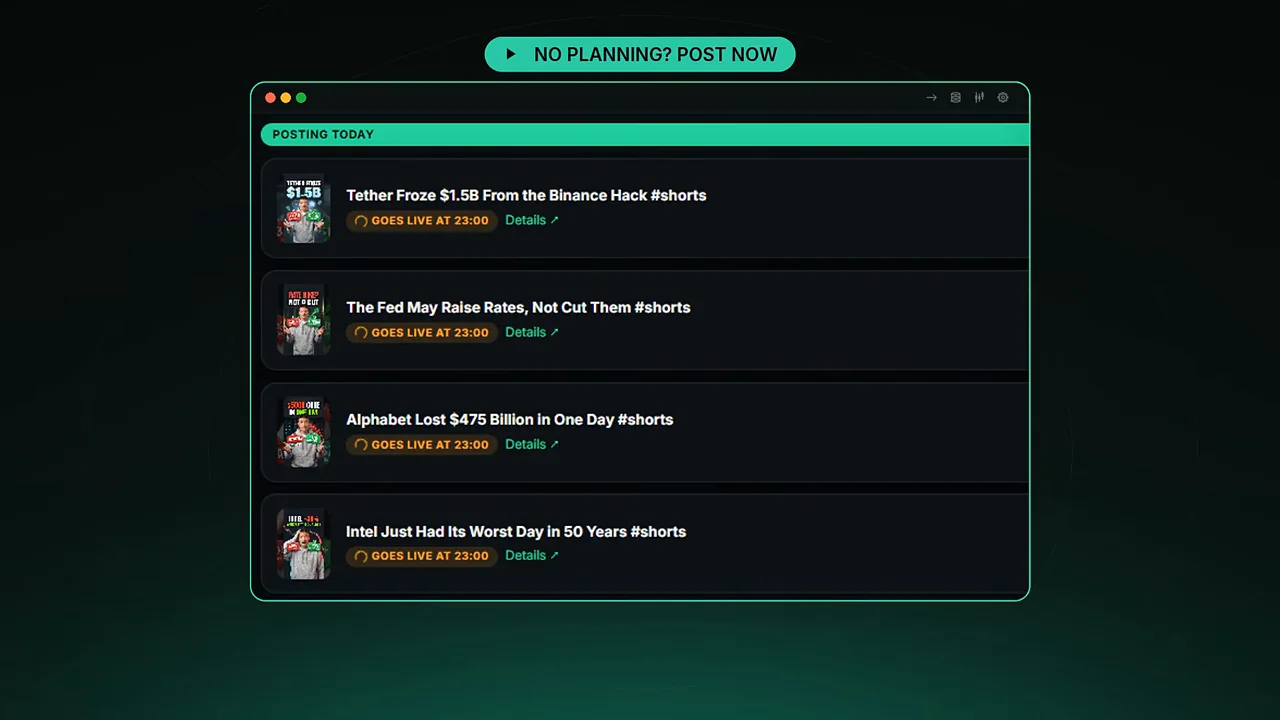 5:13 Access Test, Post Now & Filter
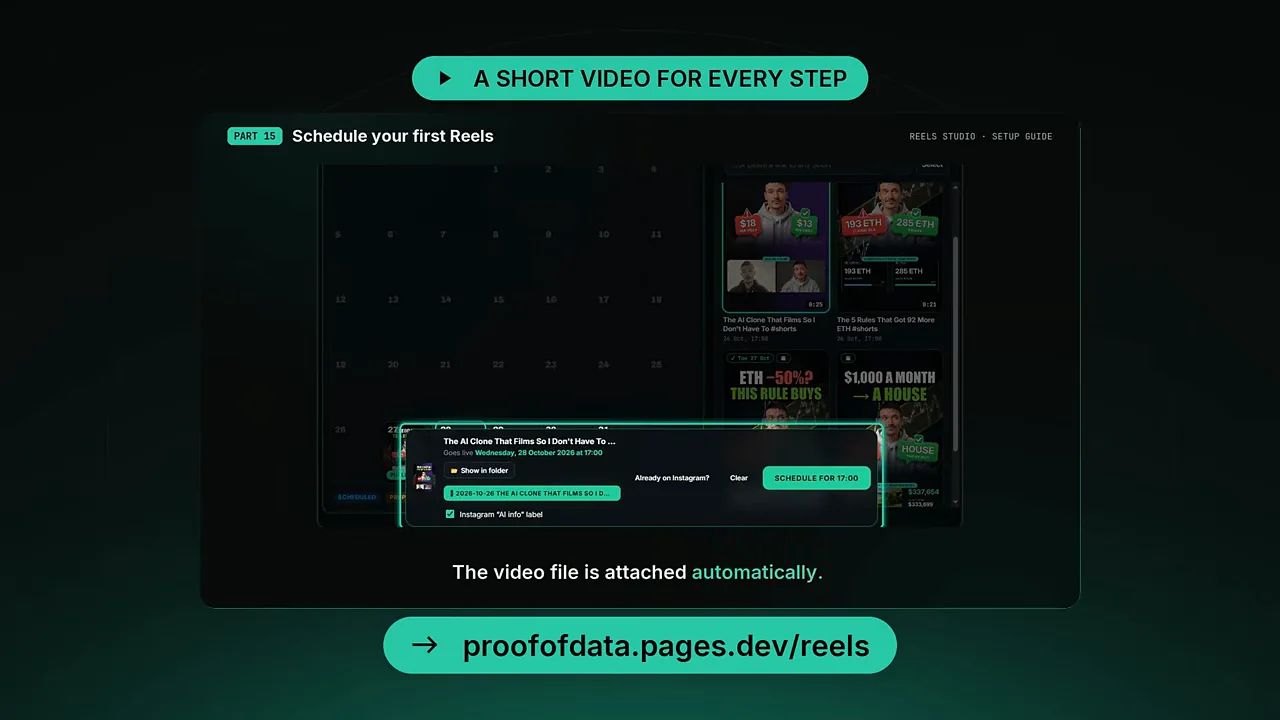 5:27 Free Step-by-Step Guide
 5:39 Honest Limits
Watch the full build, the 2033 bug and the Meta setup traps on YouTube.
FAQ
Can you schedule Instagram Reels through the Instagram API?
According to the video, no. Instagram's API can't schedule Reels, and an uploaded video expires within 24 hours. Reels Studio stores the video and metadata on a free GitHub server and uploads and publishes it on the chosen day.
How do I post YouTube Shorts to Instagram Reels automatically for free?
Reels Studio is free and open source. You pick a Short and a day, and it publishes the Reel at your set time with the title, description, hashtags, thumbnail cover and your comment. It runs on free GitHub, Google Cloud and Meta plans.
Why does my Instagram API automation stop working after 60 days?
When you generate a system user token in Meta Business Settings, Meta pre-selects a 60-day expiry. Set it to Never, otherwise the token expires and the automation stops after about two months.
Does my computer need to be on for scheduled Reels to post?
Only when you schedule, because the desktop app downloads the Short on your computer. YouTube blocks downloads from data-center servers like GitHub's. The actual posting runs on GitHub, with an outside timer as a backup trigger.
Watch on YouTube · Subscribe to @PROOFOFDATA
Topics: auto post instagram, instagram scheduler, free social media scheduler, instagram automation, post to instagram automatically, youtube to instagram, youtube shorts to instagram reels, schedule instagram reels